Layout and Styling
The next set of configuration options enables you to change the layout and style of your admin panel.
Layout
It's possible to change the admin panel layout, you can use a top navigation (navbar) only layout, or enable the fixed mode for the sidebar, the navbar or the footer.
CAUTION
AdminLTE v4 removed the boxed layout. The layout_boxed option is no longer part of the shipped configuration file. It is still read for backward compatibility, but it has no effect any more.
The following config options are available:
layout_topnavEnables/Disables the top navigation only layout, this will remove the sidebar and put all your links at the top navbar.
TIP
When enabling layout_topnav, the recommendation is to also tune the classes_topnav_nav configuration to add the class navbar-expand-md or navbar-expand-lg instead of navbar-expand, in order to get a correct functionality of the hamburger button at low screen sizes.
layout_boxedremovedRemoved from the shipped configuration file. Still read for backward compatibility, but it has no effect.
layout_fixed_sidebarEnables/Disables the fixed mode for the sidebar (adds the
.layout-fixedclass to the body). Can't be mixed withlayout_topnav.layout_fixed_navbarEnables/Disables the fixed mode for the navbar (adds the
.fixed-headerclass to the body).layout_fixed_footerEnables/Disables the fixed mode for the footer (adds the
.fixed-footerclass to the body).layout_compactEnables/Disables the AdminLTE v4 compact mode (adds the
.compact-modeclass to thebodyelement). It reduces the height of the header, the padding of the sidebar links and the spacing of the content, which fits more information on a screen.
IMPORTANT
AdminLTE v4 has no responsive fixed modes any more, the .fixed-header and .fixed-footer classes apply to every viewport size. For backward compatibility, an array value (the old responsive usage) is still accepted on layout_fixed_navbar and layout_fixed_footer, and it enables the fixed mode when any of its entries is true.
Responsive Usage deprecated
Up to AdminLTE v3 the fixed navbar and the fixed footer could be enabled per viewport size, by using an array like ['xs' => true, 'lg' => false] on the layout_fixed_navbar and layout_fixed_footer options. AdminLTE v4 dropped the underlying responsive classes. The array notation is still accepted so existing configurations keep working, but the resulting layout is fixed on all viewport sizes.
Print Mode
AdminLTE v4 tunes what the browser puts on paper through the data-lte-print attribute of the <html> element. The print configuration option is the list of tokens declared on it, given either as an array or as a space separated string:
'print' => ['plain'],

// The same, as a string.
'print' => 'plain',
The accepted tokens are:
| Token | Effect |
|---|---|
plain | Do not print the url after every external link, and drop the border printed around the buttons |
app | Restore the printing of the layout chrome (the header, the sidebar and the footer) |
Leave the array empty (the default) and no attribute is emitted at all, so the AdminLTE print styles apply exactly as they ship. Any token outside that set is dropped, so the attribute can never carry a value AdminLTE would not understand.
NOTE
AdminLTE 4.9 changed what a page prints by default. Up to 4.8 the header, the sidebar and the footer were printed with the content; from 4.9 on they are left out, which is why the app token exists to bring them back. This package requires ^4.9, so both tokens are effective. If you upgrade an application whose printed pages used to include the chrome, add 'print' => ['app'] to restore it.
Color Mode
AdminLTE v4 replaces the old dark mode class by the Bootstrap 5.3 color modes: the data-bs-theme attribute is set on the <html> element and every component follows it automatically.
The following configuration options are available:
color_mode.enabledEnables/Disables the AdminLTE color mode plugin. When disabled, the
data-lte-color-mode="off"attribute is set on the<html>element, the plugin restores nothing from the browser storage, and the configured mode is applied as is. Use it when your application takes over the theming completely. Note the'auto'mode can only be resolved by that plugin, so it falls back to'light'here.color_mode.defaultThe color mode used when the visitor has no stored preference. The supported values are:
'light','dark'and'auto'(follow the operating system preference of the visitor).color_mode.rememberWhen enabled (the default), the AdminLTE v4 color mode plugin stores the choice of the visitor in the browser
localStorageand restores it on the next page load, which is the standard AdminLTE v4 behavior. The preference therefore lives only in that one browser: it is never sent to your application, it is lost when the visitor clears the site data or switches to another device or browser, and it cannot be read back on the server side.Pick
remember => false(together with an explicit'light'or'dark'default) whenever the preference has to live on the server instead — for example persisted per user in your database. In that mode the client side plugin is switched off and the package resolves the color mode from your ownReadingDarkModePreference/DarkModeWasToggledlisteners, as described next.When set to
false, the AdminLTE color mode plugin is switched off entirely: the package addsdata-lte-color-mode="off"to the<html>element and uses its own server side toggle instead (theadminlte.darkmode.toggleroute together with theReadingDarkModePreferenceandDarkModeWasToggledevents). This is the mode to pick when you want to persist the preference of a logged in user in your database rather than in their browser, or when the panel must always start on the configuredcolor_mode.default.
IMPORTANT
The 'auto' default is the exception: it can only be resolved on the client side, from the operating system preference of the visitor. So with color_mode.default => 'auto' the plugin is not switched off, even when color_mode.remember is disabled. Combine remember => false with an explicit 'light' or 'dark' default.
NOTE
The plugin has to be turned off in that case, otherwise it would restore its own stored value on load and fight with the preference your application resolved on the server.
color_mode.no_flash_scriptWhen enabled (the default), a small inline script is added at the top of the
<head>to apply the resolved color mode before the first paint, avoiding a flash of the incorrect theme.color_mode.theme_colorThe colors used for the
theme-colormeta tags (lightanddarkkeys). Set an entry tonullto omit the related meta tag.color_mode.routesWhether to register the server side color mode route of the package, the
POST adminlte/darkmode/toggleendpoint namedadminlte.darkmode.toggle. It is enabled by default and it is the endpoint the legacy two states toggle posts to. Set it tofalsewhen your application provides its own endpoint, or when the color mode is fully resolved on the client side (color_mode.remember => true).
NOTE
The older disable_darkmode_routes option of the URLs section does the same thing with the inverted meaning, and both of them are honored: the route is only registered when color_mode.routes is not false and disable_darkmode_routes is not true. Prefer the new color_mode.routes option, which sits next to the rest of the color mode configuration. The full list of the routes registered by the package is on the events page.
To let your users switch the color mode, add the dark mode menu item to your menu. With color_mode.remember enabled it renders the AdminLTE v4 color mode selector (light / dark / auto), otherwise it renders the legacy two states toggle.
Legacy Color Mode Options
Two options of the 3.x releases are not part of the shipped configuration file anymore, but they are still read, so an old configuration file keeps working:
layout_theme_modedeprecatedA string with the same values as
color_mode.default('light','dark'or'auto').layout_dark_modedeprecatedA boolean.
layout_dark_mode => truebehaves exactly likecolor_mode.default => 'dark'.
WARNING
The legacy options are resolved before color_mode.default, not after it, so a leftover value in your published configuration file silently wins over the new section. The initial color mode is picked from the first of the next sources that resolves one:
layout_theme_mode, when it holds one of the three valid values.layout_dark_mode, when it istrue.- The
ReadingDarkModePreferenceevent, when one of your listeners callsenable()on it. color_mode.default, falling back to'auto'when it holds an unknown value.
Delete both legacy options from your config/adminlte.php file once you have filled the color_mode section.
RTL Mode
AdminLTE v4 ships a right-to-left variant of every stylesheet. When the RTL mode is active, the package adds dir="rtl" to the <html> element and loads the *.rtl.min.css variant of the AdminLTE stylesheets. Nothing else has to be changed on your views: the Bootstrap 5.3 logical utilities (ms-*, me-*, float-start, float-end, …) mirror themselves.
The following configuration options are available:
rtl.enabledSet it to
trueto always use the RTL mode, tofalseto never use it, or tonull(the default) to enable the RTL mode automatically when the current application locale is a right-to-left one.rtl.localesThe set of locales that are considered right-to-left when
rtl.enabledisnull. Both a full locale ('uz-AF') and a language ('ar', which also matchesar_EG) can be used.
Example: enabling the RTL mode only for the Arabic and Persian locales:
'rtl' => [
    'enabled' => null,
    'locales' => ['ar', 'fa'],
],
If you provide the AdminLTE assets through your own asset bundling setup, remember to import the RTL stylesheet yourself when the RTL mode is active.
Authentication Views Classes
You can change the look and behavior of the authentication views (login, register, email verification, etc). The following config options are available:
classes_auth_cardExtra classes for the card box. Classes will be added to the element
div.card.classes_auth_headerExtra classes for the card box header. Classes will be added to the element
div.card-header.classes_auth_bodyExtra classes for the card box body. Classes will be added to the element
div.card-body.classes_auth_footerExtra classes for the card box footer. Classes will be added to the element
div.card-footer.classes_auth_iconExtra classes for the icons (Bootstrap Icons) used on the input fields.
classes_auth_btnExtra classes for the submit buttons.
Default Style
The set of current default values and the rendered look is the next one:
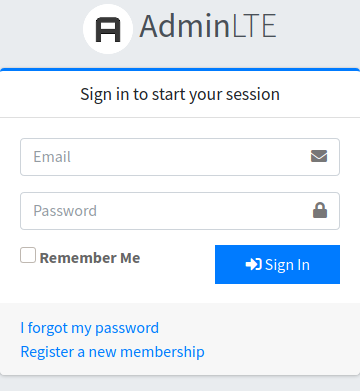
'classes_auth_card' => 'card-outline card-primary',
'classes_auth_header' => '',
'classes_auth_body' => '',
'classes_auth_footer' => '',
'classes_auth_icon' => '',
'classes_auth_btn' => 'btn-primary',
However, you can customize the options as you want to get some particular themes, for example:
Dark Theme Style
A dark card with light buttons and icons.
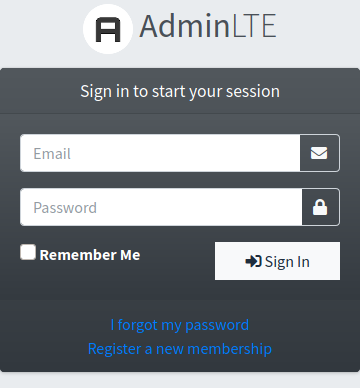
'classes_auth_card' => 'text-bg-dark',
'classes_auth_header' => '',
'classes_auth_body' => 'text-bg-dark',
'classes_auth_footer' => 'text-center',
'classes_auth_icon' => 'text-light',
'classes_auth_btn' => 'btn-light',
Colored Header Style
A colored header background with matching icons.
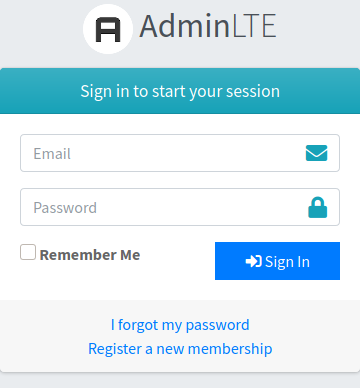
'classes_auth_card' => '',
'classes_auth_header' => 'text-bg-info',
'classes_auth_body' => '',
'classes_auth_footer' => 'text-center',
'classes_auth_icon' => 'fs-5 text-info',
'classes_auth_btn' => 'btn-primary',
IMPORTANT
AdminLTE v4 removed the btn-flat class and the bg-gradient-<color> classes of the extended palette are only available when the extended colors stylesheet is enabled. Prefer the Bootstrap 5.3 text-bg-<color> utilities, which also take care of the text contrast.
Admin Panel Classes
You can change the look and behavior of the admin panel by adding extra classes to the body, brand, sidebar, sidebar navigation, top navigation and top navigation container.
The following config options are available:
classes_bodyExtra classes for the body. The default value is
bg-body-tertiary. You may also use the experimentalsidebar-hiddenclass to hide the sidebar.classes_brandExtra classes for the brand. Classes will be added to element
a.navbar-brandiflayout_topnavis used, otherwise they will be added to elementa.brand-link.classes_brand_textExtra classes for the brand text. Classes will be added to the element
span.brand-textof the sidebar brand, or to the plainspanholding the brand text whenlayout_topnavis used (the AdminLTE v4 topnav brand carries nobrand-textelement).classes_content_headerClasses for the content header container. Classes will be added to the container of the element
div.app-content-header. If you left this empty, the default iscontainer-fluid, except on thelayout_topnavlayout, where the value of theclasses_topnav_containeroption is used instead.classes_wrapperExtra classes for the layout wrapper. Classes will be added to the element
div.app-wrapper.classes_content_wrapperClasses for the content wrapper container. Classes will be added to the element
main.app-main.classes_contentClasses for the content container. Classes will be added to the container of the element
div.app-content. If you left this empty, the default iscontainer-fluid, except on thelayout_topnavlayout, where the value of theclasses_topnav_containeroption is used instead.classes_content_top_area/classes_content_bottom_areaClasses for the containers of the optional
content_top_areaandcontent_bottom_areasections. They follow the same fallback rules asclasses_content. Both sections are described on the usage page.classes_footerExtra classes for the footer. Classes will be added to the element
footer.app-footer.classes_sidebarExtra classes for the sidebar. Classes will be added to the element
aside.app-sidebar. The default value isbg-body-secondary shadow.
IMPORTANT
AdminLTE v4 removed the sidebar-dark-<color> and sidebar-light-<color> skins. Use a Bootstrap background utility here (for example bg-body-secondary, bg-primary or text-bg-navy with the extended colors enabled), and set the color mode of the sidebar with the sidebar_theme option below.
sidebar_themeThe color mode applied to the sidebar through the
data-bs-themeattribute. The available values are:'dark'(the default),'light'ornullto inherit the color mode of the page.classes_sidebar_navExtra classes for the sidebar navigation. Classes will be added to the element
ul.nav.sidebar-menu. The three variants that AdminLTE v4 styles (nav-compact,nav-indentandnav-pills) have their own options on the sidebar section, and they are added to thebodyelement instead, so there is no need to write them here.
IMPORTANT
The nav-child-indent, nav-flat and nav-legacy classes of AdminLTE v3 no longer exist.
classes_topnavExtra classes for the top navigation bar. Classes will be added to the element
nav.app-header.navbar. The default value isbg-body. Use the Bootstrap 5.3 background utilities here (bg-body,bg-body-secondary,bg-primary, …); the AdminLTE v3navbar-<color>,navbar-lightandnavbar-darkclasses were removed by Bootstrap 5.3 and AdminLTE v4.classes_topnav_navExtra classes for the top navigation. Classes will be added to the element
nav.app-header.navbar. When enablinglayout_topnavthe recommendation is to usenavbar-expand-mdornavbar-expand-lgto get the items auto collapsed into a hamburger button on low screen sizes. Otherwise, stay with thenavbar-expandclass.classes_topnav_containerExtra classes for the top navigation bar container. Classes will be added to the
divwrapper inside the elementnav.app-header.navbar. The default value iscontainer-fluid.
IMPORTANT
On the layout_topnav layout the navbar and the content share this container. The content header and the content fall back to classes_topnav_container (instead of the plain container-fluid used on the sidebar layout) whenever classes_content_header and classes_content are left empty. This is what keeps the brand in the navbar and the content below it aligned on the same left edge. So, if you switch classes_topnav_container to a centered container, the whole topnav layout is centered in one go — and if you want the navbar and the content to differ, set classes_content_header and classes_content explicitly.
Sidebar
You can modify the sidebar properties, for example you can disable the collapsed mini sidebar mode, start with a collapsed sidebar, choose the breakpoint where the sidebar expands, remember the collapsed state between page loads, change the scrollbar theme or auto hide option, pick one of the built-in navigation styles, disable the sidebar navigation accordion and change the sidebar animation speed.
The following configuration options are available:
sidebar_miniEnables/Disables the collapsed mini sidebar mode (adds the
.sidebar-miniclass to the body). Usetrueto enable it orfalseto disable it.
IMPORTANT
AdminLTE v4 has a single sidebar mini mode, the breakpoint where the sidebar switches to its offcanvas (mobile) behavior is controlled by the sidebar_expand option instead. The legacy breakpoint tokens ('xs', 'sm', 'md', 'lg', 'xl' and 'xxl') are still accepted and simply enable the mini mode.
sidebar_expandThe breakpoint where the sidebar is expanded (adds the
.sidebar-expand-*class to the body). The supported values are:'sm','md','lg'(the default),'xl'and'xxl'. Below that breakpoint the sidebar behaves like an offcanvas panel.sidebar_without_hoverWhen enabled, a collapsed (mini) sidebar does not expand on mouse hover (adds the
.sidebar-without-hoverclass to the body).sidebar_collapseEnables/Disables the sidebar collapsed mode by default. If you set this option to
truethe sidebar will start on the collapsed mode.sidebar_collapse_rememberEnables/Disables the remembering of the collapsed state of the sidebar between page loads. When set to
true, the package adds thedata-enable-persistence="true"attribute to theaside.app-sidebarelement, which is the switch of the AdminLTE v4 PushMenu plugin for its own persistence feature. The plugin then stores the state in the browser and restores it on the next page load, all on the client side.sidebar_collapse_auto_sizeremovedRemoved from the shipped configuration file and not read any more. The AdminLTE v4 PushMenu plugin collapses the sidebar on its own below the breakpoint configured through
sidebar_expand, so there is no separate width bound to set. Usesidebar_expandinstead.sidebar_collapse_remember_no_transitionremovedRemoved from the shipped configuration file and not read any more. The AdminLTE v4 PushMenu plugin suppresses the transition on the restored state by itself, so the flicker this option used to work around no longer happens.
sidebar_breakpointThe viewport width (in pixels) where the sidebar switches between its desktop and its mobile behavior. When set, the package adds the
data-sidebar-breakpointattribute to theaside.app-sidebarelement and, at the same time, selects the.sidebar-expand-*class that already uses that width — so the AdminLTE v4 PushMenu plugin and the media queries of the stylesheet agree on where the switch happens. It therefore takes precedence oversidebar_expand. Leave itnull(the default) to letsidebar_expanddecide.The accepted widths are the five AdminLTE ships a stylesheet for. Both the width itself and the upper bound of its media query are understood, so
768and767.98both selectmd:Width Selected class 576sidebar-expand-sm768sidebar-expand-md992sidebar-expand-lg1200sidebar-expand-xl1400sidebar-expand-xxl
IMPORTANT
Any other value is ignored and sidebar_expand keeps deciding. AdminLTE hardcodes these five widths in the media queries of its stylesheet and makes the plugin read the width back from the active .sidebar-expand-* class, so an arbitrary width can not be honored: the plugin would treat the viewport as desktop while the stylesheet still renders the mobile overlay, and the sidebar could no longer be opened at all in between.
sidebar_scrollbar_themeChanges the sidebar vertical scrollbar theme. Possible values are:
'os-theme-light','os-theme-dark'or'os-theme-none'to hide the scrollbar.sidebar_scrollbar_auto_hideChanges the sidebar scrollbar auto hide trigger action. This option controls the possibility to hide the visible scrollbars automatically after a certain action. The possible values are:
'never': The scrollbars never get hidden automatically.'scroll': The scrollbars get hidden automatically after a scroll.'leave'(the default): The scrollbars get hidden automatically after the mouse has left the host-element.'move': The scrollbars get hidden automatically after a scroll and after the mouse has stopped moving.
sidebar_scrollbar_click_scrollEnables/Disables the click scroll behavior of the sidebar scrollbar (clicking on the scrollbar track scrolls the sidebar).
sidebar_scrollbar_optionsExtra options for the sidebar scrollbar, as an array. They are merged into the
scrollbarsobject of the OverlayScrollbars setup, after the three options above, so they may also override the values those resolve. The default value is an empty array, which leaves the setup exactly as it was. Any non array value is ignored.php'sidebar_scrollbar_options' => [ 'visibility' => 'auto', 'dragScroll' => false, ],sidebar_scrollbar_disable_belowThe viewport width (in pixels) at or below which the OverlayScrollbars instance is not created at all, so the sidebar uses the native scrollbar of the browser. The default value is
992, which covers the phones and the small tablets. Use0to always create the instance. A non numeric value falls back to the default.
NOTE
The sidebar_scrollbar_* options above configure the OverlayScrollbars instance that the package attaches to the .sidebar-wrapper element. That setup is emitted whenever the layout has a left sidebar (so it is skipped only on the top navigation layout) and the assets.overlayscrollbars resource is not disabled — it is not tied to the fixed sidebar mode. On top of that, the instance is not created when the viewport is at or below the sidebar_scrollbar_disable_below width, to avoid interfering with touch scrolling on mobile devices.
The values are handed over to OverlayScrollbars 2.x verbatim, so they must be valid options of that library.
sidebar_nav_compactEnables/Disables the compact style of the sidebar navigation (adds the
.nav-compactclass to thebodyelement). It removes the rounded corners and the spacing between the links, which fits more items on a screen.sidebar_nav_indentEnables/Disables the indentation of the sidebar submenus (adds the
.nav-indentclass to thebodyelement). The children of a treeview get an extra left padding, so the hierarchy of the menu is easier to follow. It can be combined withsidebar_nav_compact, AdminLTE styles that combination on its own.sidebar_nav_pillsEnables/Disables the Bootstrap pills style of the sidebar navigation (adds the
.nav-pillsclass to thebodyelement). The active link is then painted with the--bs-nav-pills-link-active-bgcolor of Bootstrap instead of the sidebar one.
NOTE
The three options above are the built-in style variants of the AdminLTE v4 sidebar menu. They are emitted on the body element, not on the menu, because AdminLTE compounds them with sidebar-mini and sidebar-collapse on a single element and then reaches the sidebar as a descendant. Placing them on the menu would silently lose the refinements for the collapsed and hover-expanded sidebar. The same applies to layout_compact.
sidebar_nav_accordionEnables/Disables the sidebar accordion navigation feature. When enabled, any already opened menu will be collapsed when expanding another one.
sidebar_nav_animation_speedChanges the sidebar slide up/down animation speed (in milliseconds).
sidebar_nav_aria_labelThe accessible name of the sidebar navigation, emitted as the
aria-labelattribute of thenavelement that wraps the menu. It is never visible, but a screen reader reads it out to announce the landmark. Leave itnull(the default) to use themain_navigationtranslation string of the active locale.
Right Sidebar
Here you have the option to enable a right sidebar on all your views. When enabled, you can use the @section('right_sidebar') section to setup its content. The icon you configure will be displayed at the end of the top menu, and will toggle the visibility (show/hide) of the sidebar.
IMPORTANT
AdminLTE v4 removed the old control sidebar. The right sidebar of the package is now built on top of the Bootstrap 5 offcanvas component, and it is rendered with the adminlte-right-sidebar identifier. As a consequence, the right_sidebar_slide, right_sidebar_push, right_sidebar_scrollbar_theme and right_sidebar_scrollbar_auto_hide options no longer have any effect.
TIP
The right sidebar is automatically shown if you fill out the section right_sidebar on some of your views (no matter whether it was enabled or not in the configuration file). This feature gives you the possibility to show the right sidebar only on some particular views instead of showing it in all views.
The following configuration options are available:
right_sidebarEnables/Disables the right sidebar.
right_sidebar_iconChanges the icon that will be used to toggle the right sidebar.
right_sidebar_themeChanges the color mode of the right sidebar, the following options are available:
'dark','light'ornull(the default) to inherit the color mode of the page. Note the AdminLTE v4 right sidebar is a plain Bootstrap offcanvas, so forcing a mode here makes it fight the color mode of the rest of the page.right_sidebar_titleThe title shown on the offcanvas header. When empty, the panel title is only exposed to screen readers.
right_sidebar_placementWhere the panel is docked:
'end'(the default),'start','top'or'bottom'. Note that'start'and'end'are direction aware, so they are mirrored on the RTL mode.right_sidebar_backdropEnables/Disables the offcanvas backdrop.
right_sidebar_scrollEnables/Disables the body scrolling while the right sidebar is open.
right_sidebar_classesExtra classes to add to the offcanvas element.